My KPOP Shop Controls & UI Guide
PC and mobile inputs for stocking, checkout, thieves, codes, staff, and packs.
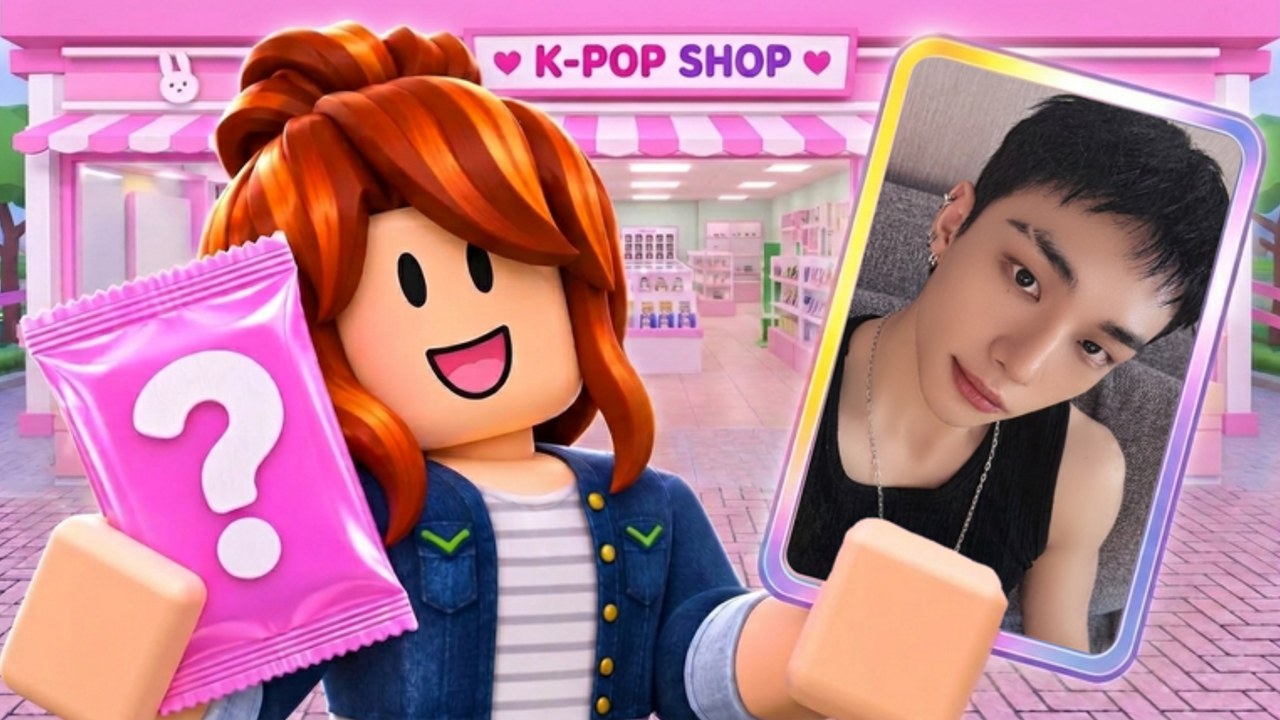
My KPOP Shop is a Roblox shop sim, so most actions use the same movement and proximity prompts you already know — plus shop-specific menus for stock, checkout, hiring, packs, décor, and codes. This Controls & UI Guide maps those loops on PC and mobile so you spend less time hunting buttons and more time selling. Pair it with Getting Started on a fresh save.
There is no separate console-only control scheme documented publicly as of November 2026. If you play on a gamepad through Roblox, treat on-screen prompts as the source of truth and fall back to touch or keyboard when a menu needs precise typing (especially codes).
Movement basics (PC + mobile)
PC: WASD or arrow keys move your avatar. Mouse looks around; click proximity prompts on shelves, registers, NPCs, and interactables. Space jumps when you need a clearer sightline over displays.
Mobile: Virtual joystick moves; drag the camera with a finger; tap glowing prompts on shelves, the register, thieves, hire stations, and pack UIs. Use a landscape hold when stocking so prompts do not hide under your thumbs.
Stay close enough for prompts to appear. If a shelf will not restock, walk nearer and face the display before tapping again. The same proximity rule applies to catching thieves and ringing fans.
Stocking shelves
- Approach an empty or low shelf (albums, lightsticks, or photocard packs).
- Trigger the stock / restock prompt.
- Confirm the product purchase or placement in the stock UI.
- Watch the shelf fill, then move to the next gap.
Deep product order lives in Stock Shelves and Products. Controls-wise, the failure mode is simple: you opened the wrong menu (décor or packs) while standing at a bay. Close competing UIs, face the shelf, and retry the prompt.
Checkout / register
Fans line up at your register. Stand at or near the counter and accept the checkout prompt to ring sales. Early on you are the cashier; later a hired cashier covers queues while you restock or chase thieves (Hire Staff).
On mobile, keep the camera aimed at the register so the prompt stays tappable during rushes. On PC, avoid spinning the camera into décor props that block click targets. If nobody is checking out despite a crowd, confirm you are interacting with the register — not a nearby shelf or décor piece.
Catching thieves
Thieves appear as shoplifters you must interrupt. Move into range and use the catch / stop prompt before they leave with unpaid goods. Full tactics sit on Catch Thieves. Control tip: do not open Settings, pack opens, or hire menus mid-chase — closing those UIs costs the seconds thieves need to escape.
Assign a friend to security in co-op if your device struggles with camera + chase at once. A guard NPC reduces how often you must sprint the aisles yourself.
Settings and codes
Codes redeem in Settings, not Roblox chat.
- Open the on-screen Settings control.
- Find the code / redeem text field (some clients also show a Codes-style button).
- Paste one string exactly — see How to Redeem and the live list on Codes.
- Confirm, watch for success, then close Settings and return to the floor.
PC tip: Ctrl+V paste beats retyping. Mobile tip: paste from clipboard; keyboards insert spaces that break codes. Troubleshooting for failed redeems lives on Codes Troubleshooting.
Hire UI (restocker, cashier, guard)
When levels unlock staff, open the hire interface from the shop UI / NPC hire point, pick the role you need, and confirm if you can afford it. Order of value is covered in Hire Staff and Staff Tier List. After hiring, glance at the floor: shelves should start refilling, queues should shorten, or theft pressure should drop depending on the role.
If the hire button is greyed out, you likely lack level unlock or cash — not a broken control. Earn via stocked sales, dailies, and codes, then retry.
Photocard packs and binder
Pack opens use a dedicated pack / binder UI separate from shelf stocking. Open it only when you have surplus cash and the floor is covered (Photocard Packs). Controls discipline matters: long unboxing sessions are menu time, and menu time is when thieves and empty shelves punish you. Close the pack UI between short open bursts.
Stocking packs onto shelves still uses the shelf restock flow above — do not confuse “open for binder” with “put packs on display for fans.”
Other menus: décor, dailies, rankings
- Decor / themes: placement tools for furniture and group themes. Place in short bursts; keep aisle and register paths clear (Decorate Shop).
- Daily rewards: claim from the daily UI as soon as it is available each login (Daily & Offline).
- Sales rankings / progress: view-only or light interaction; do not AFK inside ranking panels during a rush (Sales Rankings).
- Co-op invite: use Roblox friend invite / experience invite flows, then assign live roles (Co-op Guide).
PC vs mobile checklist
| Task | PC focus | Mobile focus |
|---|---|---|
| Move | WASD + mouse look | Joystick + camera drag |
| Stock / catch / checkout | Click prompts | Tap prompts; landscape helps |
| Codes | Paste in Settings | Paste; watch for spaces |
| Packs | Short open bursts | Exit UI often to scan aisles |
| Hire | Confirm role + cash | Same; avoid mis-taps on décor |
Common UI mistakes
- Typing codes into chat
- Leaving Settings open during a 2x money window
- Opening packs while thieves walk free
- Blocking the register with décor pieces you cannot click past
- Standing too far from shelves so restock prompts never appear
- Assuming a missing hire button means the game is broken instead of locked by level or cash
Practice route (five minutes)
- Claim daily reward UI
- Settings → redeem one unused code
- Restock two empty shelves
- Ring one fan at the register
- Practice a thief catch if one spawns
- Open hire UI and note which roles are unlocked
- Open pack UI once, then close it without spending if cash is tight
That route wires muscle memory for every major control surface. Use the Daily Shop Checklist afterward so controls become a session habit, and the Money Guide so each interaction funds the next upgrade.
Related tools and guides
- Getting Started — first-hour priorities
- Stock Shelves — restock loops
- Catch Thieves — security response
- Hire Staff — restocker, cashier, guard
- How to Redeem Codes — Settings path detail
- Tools Hub — checklists and money workflows
Master prompts and menus once, then the rest of the wiki is strategy instead of “where is the button?” confusion.
Frequently Asked Questions
Quick answers for My KPOP Shop shop owners.
Where do I redeem codes on PC and mobile?
Open Settings in-game and paste into the redeem field. Do not use Roblox chat. Paste carefully on mobile so spaces are not inserted.
Why will a shelf not restock?
Move closer, face the display, and close other menus. Confirm you can afford the product and that you are using the shelf prompt rather than décor or pack UIs.
How do I catch thieves with controls?
Sprint into range and trigger the catch prompt before they leave. Avoid opening Settings or pack menus mid-chase.
Is there a different control scheme for hiring staff?
No special scheme — open the hire UI when unlocked, select restocker, cashier, or guard, and confirm if you have the level and cash.
Should I open packs on mobile during busy hours?
Only in short bursts. Pack UI hides aisle awareness. Stock and catch first, or let a co-op friend watch the floor while you open.